

How to Move Your App to Base44 Without Rebuilding It: Step-by-Step Guide
Daniel Zvi
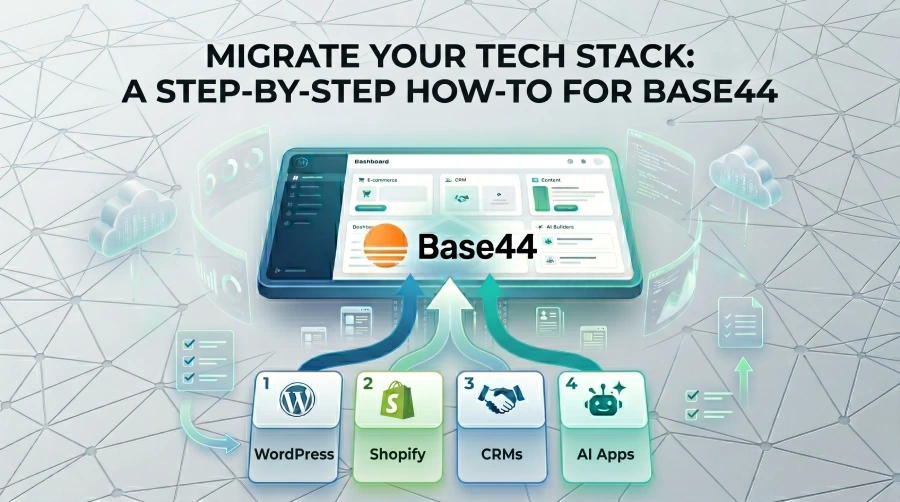
To migrate your app, website, or CRM data without breaking your setup or losing information, use the Base44 Platform Migration feature. It securely connects to your current software and automatically copies your database layout, customer records, and frontend design in under 5 minutes.
For startup founders and product owners, this provides an immediate way to upgrade your tech stack without dealing with messy spreadsheet exports, broken data links, or rebuilding your code from scratch.
Base44 – Best for Moving Apps from Lovable & Bolt.new
Who is this migration route best for?
Base44's AI app migration is best for creators and founders who need to move an app built with AI tools into a real, launch-ready home without breaking how their data connects.
Why is Base44 a good alternative to starting over?
Base44 is a much better option than rebuilding by hand because it hooks directly into your existing database and copies your setup, keeping everything organized exactly the way you left it.
What are the main features?
- System reads your database setup. It copies your tables, columns, and connections automatically.
- Platform keeps your security settings. It respects the safety rules you already set up for your data.
- System pulls your visual design. It connects to your GitHub account to bring over your original front-end layout files.
- Software gives you a quick preview. It brings over 100 sample items first so you can double-check everything before moving the rest.
 Our top picks for October 2026

 Ready to use, instantly
Simple Steps for Lovable & Bolt.new:
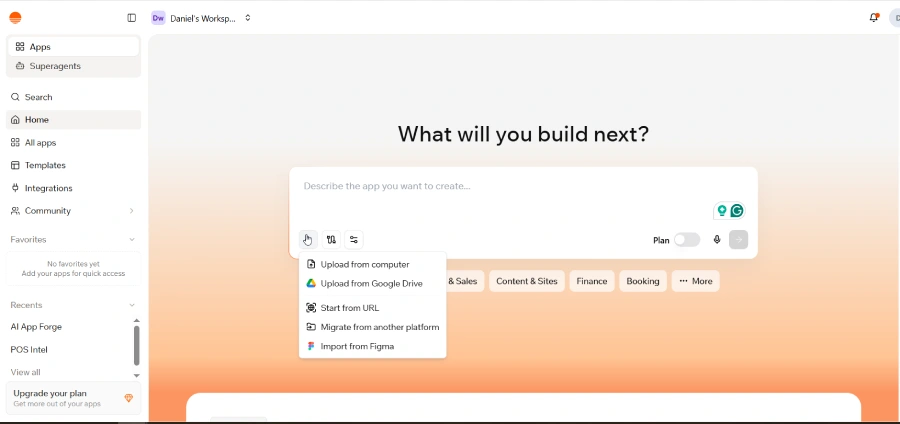
- Log into Base44, find the main text box where you type prompts, and click the + button.
- Click Migrate from another platform from the menu that pops up.
- Choose Lovable or Bolt.new, depending on what you used to build your app.
- (Optional) Click Connect next to GitHub if you want to bring over your design and layout files.
- Paste your Supabase URL (it will look like https://xxx.supabase.co).
- Grab your secret service_role key from your Supabase account (go to Settings > API Keys and look for it under the legacy keys tab). Paste it into Base44 and click Connect.
- Choose the pieces of data you want to bring over, click Import & Continue, check the pre-filled prompt on your home page, and click Send.
Base44 – Best for Upgrading HubSpot & Salesforce
Who is this CRM migration route best for?
Base44's CRM migration is best for sales team leads and operations managers who need to build custom software features directly on top of their existing customer lists.
Why is Base44 a good alternative to exporting messy files?
Base44 beats standard spreadsheet exports because it creates a secure, live connection to your account that safely reads your contacts and pipelines without messing up your day-to-day sales tracking.
What are the main features?
- Connector maps your standard information. It tracks up to 24 core items like deals, contacts, and companies.
- System handles custom setups. It reads your unique business fields without making you match them up manually.
- Framework uses a secure link. It only reads your data and never edits or changes anything in your original account.
- Gateway keeps track of owners. It automatically remembers which team member is assigned to which client or deal.
Simple Steps for HubSpot:
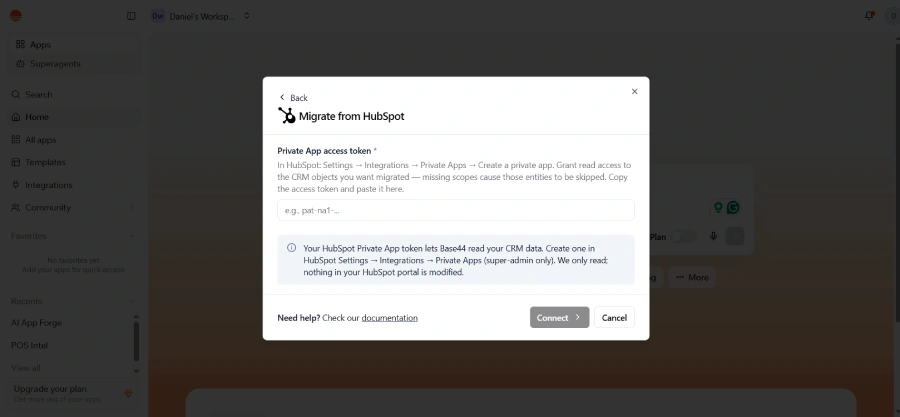
- Create a Private App Access Token inside HubSpot by going to Settings > Integrations > Private Apps > Create a private app.
- Check the box for these exact "read" permissions: crm.objects.contacts.read, crm.objects.companies.read, crm.objects.deals.read, crm.objects.line_items.read, crm.objects.owners.read, crm.schemas.contacts.read, crm.schemas.companies.read, crm.schemas.deals.read.
- Go to Base44, click the + button, select Migrate from another platform, and click HubSpot.
- Paste your secret access token into the box and click Connect.
- Select the contacts or sales pipelines you want to bring over, click Import & Continue, then hit Send on the home page.
Simple Steps for Salesforce:
- Click the + button on your Base44 homepage and choose Migrate from another platform.
- Select Salesforce as the tool you are moving away from.
- Pick your account type: Production (live data) or Sandbox (test data).
- Click Connect to open the standard, secure Salesforce login window and approve the connection.
- Go back to Base44, check the boxes for the info you want to pull over, click Import & Continue, and hit Send.
Base44 – Best for Rebuilding Shopify & WordPress Sites
Who is this website migration route best for?
Base44's website migration is best for online store owners and content managers who need to turn an old website into a fast, modern app without losing their current Google search rankings.
Why is Base44 a good alternative to manual redesigns?
Base44 saves you weeks of work because it grabs your existing store design and web links automatically, ensuring your site looks familiar and keeps working perfectly for visitors.
What are the main features?
- Processor copies your visual style. It looks at your current design and recreates it inside your new app.
- Platform protects your web links. It keeps your exact URL paths the same so your Google rankings don't drop.
- Module moves your media libraries. It brings over your images, pages, blog posts, and comments.
- Engine handles store inventory. It safely copies your products, customer lists, and active discounts.
Simple Steps for Shopify:
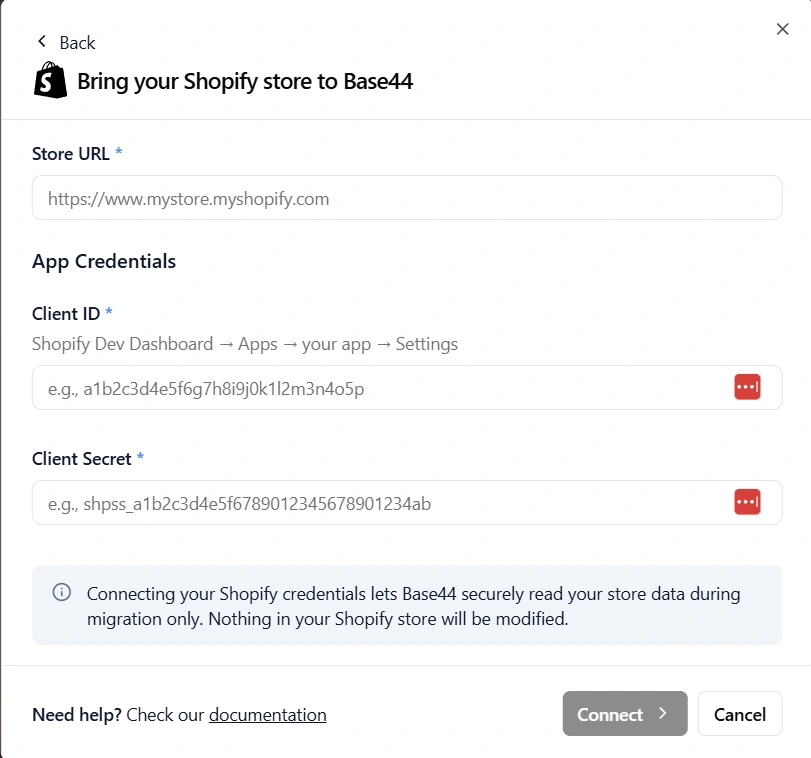
- Go to your Shopify developer account by clicking your store name and picking View Dev Dashboard.
- Choose your app from the list, click Settings, and find your Client ID and Client Secret under the credentials tab.
- Inside Base44, click + > Migrate from another platform > Shopify.
- Type in your main store website link (make sure to include the full https:// part, like https://mystore.myshopify.com).
- Paste your Client ID and Client Secret, click Connect, pick the product catalogs you want to move, and click Import & Continue.
Simple Steps for WordPress:
- If your site is self-hosted (not on WordPress.com), log into your WordPress backend, go to Users > Profile, and create an Application Password.
- Open Base44, click the + button, choose the migration option, and select WordPress.
- Type in your main Site URL.
- Put in your regular admin Username and the new Application Password you just created (leave this blank if your site is hosted directly on WordPress.com).
- Click Connect, select the pages or store items you want to copy, click Import & Continue, and let the app build.
Finding the Right Base44 Migration Path for Your Stack
Trying to move your software by manually typing in data, messing with broken spreadsheets, or completely rewriting your code takes forever and usually breaks things. Sticking with old, rigid frameworks just because you are afraid of the move leaves you stuck with slow software and high monthly fees. The app development space has evolved — and so should your strategy.
Want to dig deeper? Check out our full Base44 review and other top app builders.
Frequently Asked Questions
Q: What is the difference between Base44's "Start from URL" and "Platform Migration"?
A: Start from URL is like a visual copier—it looks at a public webpage and recreates the design without needing a password. Platform Migration goes much deeper, logging into your account securely to copy over all your actual internal data, customers, and hidden database links.
Q: Will running a platform migration mess up my live website or database?
A: No. Base44 connects to your tools using secure, "read-only" links. The migration tool can only look at your information to copy it; it never edits, deletes, or changes anything on your original platform.
Q: What happens if I have thousands of products or customer records to move?
A: Base44 handles big moves quietly in the background. It will copy over a small batch of 100 items first so you can preview your new app and make sure it looks right. Once you approve it, the system moves the rest of your data, and you can safely close your browser window while it works.
Q: Can I bring over my custom fields from WordPress automatically?
A: No, standard WordPress migrations don't support custom fields right now. If your site relies heavily on special custom fields, you can head over to feedback.base44.com and request support for your specific setup before you hit move.
Q: Do I need to organize or clean up my Lovable or Bolt.new app before moving?
A: No. As long as your data is sitting normally in your connected Supabase account, Base44 can read the columns, text, and data connections perfectly without you having to clean anything up beforehand.
Liked this article?
Daniel Zvi
Smart Recommendations





Thank you!