

How to Turn Excel into an App with AI: The Complete No-Code Guide
Daniel Zvi
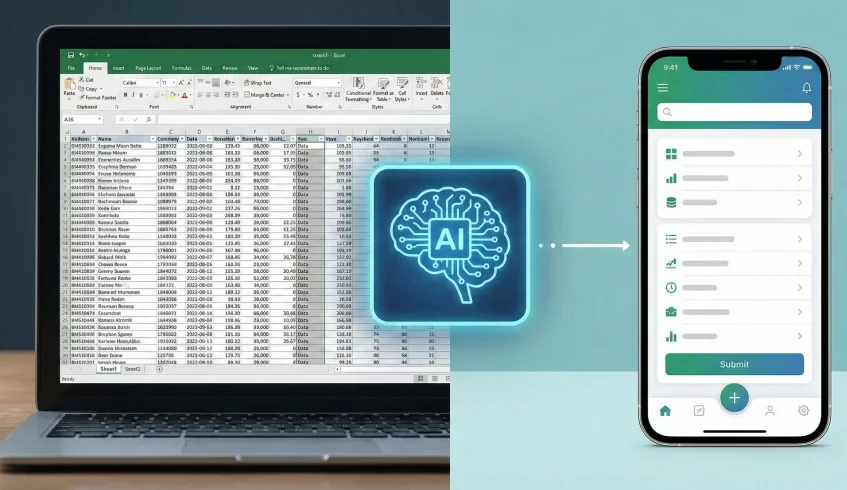
"Excel-to-App" conversion is the process of using Artificial Intelligence to automatically transform a static spreadsheet (rows and columns) into a dynamic mobile application (lists, buttons, and forms). The main benefit is transforming messy, hard-to-read data into a user-friendly interface that allows for secure data entry, image uploads, and real-time collaboration from any smartphone.
Why Should You Move from Spreadsheets to Apps?
While Microsoft Excel and Google Sheets are powerful for calculation, they are terrible for mobile workflows. If you have ever tried to pinch-and-zoom a spreadsheet on an iPhone to find a customer’s phone number, you know the struggle.
Beyond the interface issues, keeping data in a static file carries "Hidden Costs."
- Version Control Chaos: If three employees download the spreadsheet, make changes, and email it back, you now have three conflicting versions of the truth.
- Security Risks: You cannot restrict access easily in Excel. If someone has the file, they usually see everything. Apps allow you to set "Row-Level Security" so users only see their own data.
- Data Integrity: In Excel, anyone can accidentally delete a formula or type text into a date field. Apps use strict input fields (like drop-downs and date pickers) to keep your data clean.
How to Convert Excel to an App (Step-by-Step)
AI has made this process incredibly fast. The AI doesn't just copy the data; it understands the intent of your columns (e.g., recognizing that a column named "Photo" should be an image component, not text).
1. Structure and Clean Your Data
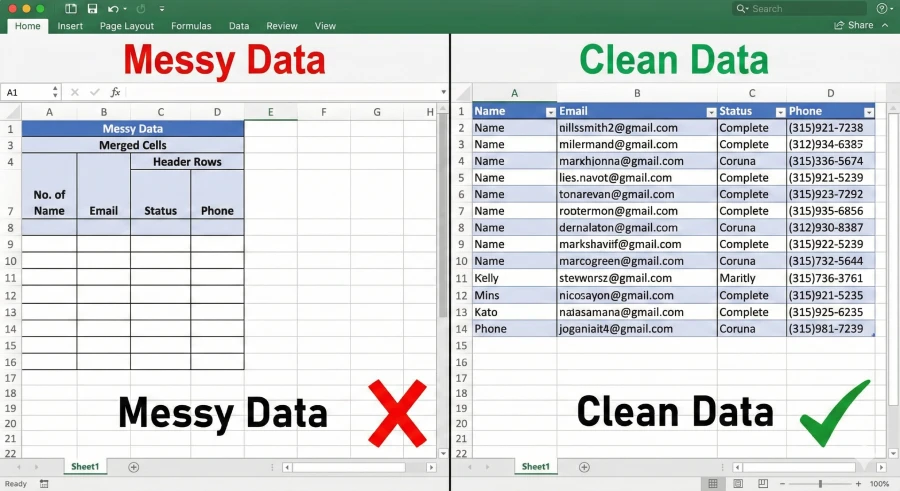
Before you touch any AI tool, you must "sanitize" your spreadsheet. AI is smart, but it cannot fix broken data structures. The most common reason for failure is formatting.
Ensure your first row is a clear Header Row (e.g., Name, Email, Status, Phone). Remove any merged cells, floating titles, or multiple tabs that don't relate to each other. The data must be "flat"—meaning every row represents a single record (like a single customer or a single inventory item). If your data relies on complex cross-sheet VLOOKUPs, flatten them into values first.
2. Connect Your Data Source to the AI Builder
Once your data is clean (hosted in Google Sheets, Excel Online, or Airtable), you will connect it to the AI App Builder.
In this step, the AI performs an "Initial Scan." It analyzes the data types. If it sees a column with addresses, it might suggest a Map View. If it sees a column with "Pending/Complete" statuses, it will suggest a Kanban Board or a filtered list. This creates the "backend" of your app instantly, syncing in real-time with your original spreadsheet.
3. Customize the Interface (UI)
The AI will generate a basic layout, but you need to refine it for the user. This is where you move from "Data" to "Product."
Focus on the "Detail View." When a user taps on a row (e.g., "Client A"), what do they see? You should group related information together. Use the builder's visual editor to drag-and-drop components. For example, add a "Click-to-Call" action button connected to the phone number column, or a "Signature Pad" component if you need delivery confirmation.
4. Set Permissions and Publish
This is the step most people forget. You must define who can see what.
In your app builder's settings, configure "User Roles." For example, you might want "Admins" to be able to edit and delete rows, while "Viewers" can only search and read. Once configured, hit "Publish." Most AI builders provide a QR code or a Progressive Web App (PWA) link that works instantly on iOS and Android without needing the App Store.
 Our top picks for April 2026
 9.8
9.8


 Ready to use, instantly


What Tools and "Tech Stack" Do I Need?
You do not need a compiler or a code editor. You need a "No-Code" stack designed for database conversion.
- The Database: Google Sheets (Free) or Airtable (Better for relationships). These act as the brain of your operation.
- The Connector: Zapier or Make.com. While not strictly necessary for the app, these tools let your new app "talk" to other software (like sending a Slack message when a new row is added).
- The AI Builder: This is the engine that renders the visual app. You need a tool that specializes in reading external data sources.
- Image Hosting: If your excel sheet links to images, ensure they are hosted publicly (like on Google Drive with public links or Cloudinary) so the app can render them.
Common "Advanced" Mistakes to Avoid
Even seasoned project managers make these errors when porting data to AI apps.
- Relying on Complex Excel Macros AI App Builders cannot read VBA Macros. If your business logic relies on a button in Excel that triggers a macro script, that functionality will break. You must rebuild that logic using the app builder's native "Action" workflow (e.g., "On Submit -> Send Email").
- Ignoring "Sync Lag" Most spreadsheet-to-app tools are not instantaneous. There is often a sync delay of a few seconds to a few minutes depending on the plan you are on. If your team needs high-frequency trading speed, a spreadsheet-backed app is the wrong choice; you need a SQL database or a high-performance builder.
- Overcrowding the Mobile Screen Just because your spreadsheet has 50 columns doesn't mean your app needs to show them all. The "List View" on mobile should only show the 3 most critical pieces of data (e.g., Name, Status, Photo). Hide the other 47 columns inside the "Detail View." Clutter destroys adoption.
Can AI Automate Complex Databases?
Manual spreadsheets are great for starting out, but they crumble at scale. If you have over 10,000 rows, or if you need robust security, a simple spreadsheet wrapper will slow down significantly and expose you to risks. This is where you need to graduate to a true AI App Development platform.
Advanced AI App Builders don't just dress up a spreadsheet; they help you migrate that data into a robust, scalable architecture automatically. They allow for features that Excel can't handle, like advanced user authentication, push notifications, and complex logical workflows.
Tools like Base44 [Read our Base44 Review] are excellent for taking that next step, allowing you to move from a simple spreadsheet to a fully secure, scalable application without writing code.
Our top picks for April 2026
Internal Resources
- Hub Page: Looking for more power? Browse our ranked list of the [Best AI Website Builders].
- Review: See how [Base44] handles enterprise data and security.
Frequently Asked Questions
Q: Can I turn Excel into an app for free?
A: Yes, many basic tools offer free tiers for simple spreadsheets. However, as you scale to more rows or need specific branding, you will usually need to upgrade to a dedicated builder.
Q: Will the app work offline?
A: It depends on the tool you select. Some platforms cache data on the device, allowing you to add rows while offline which then sync when the internet returns.
Q: How do I update the app?
A: That’s the beauty of it—you don't need to "push an update." Because the app is connected live to your data source, any change you make to the design or the data reflects instantly for all users.
Q: Is my data secure?
A: Generally, yes, but be careful with "Public" apps. Ensure you enable "User Authentication" (requiring a login) so that your private Excel data isn't indexed by Google.
Q: Can I publish this to the Apple App Store?
A: Basic spreadsheet apps are often rejected by Apple. To get on the App Store, you usually need a platform like Base44 that offers "Native Wrapping" and unique functionality to satisfy Apple's guidelines.
Liked this article?
Daniel Zvi
Smart Recommendations


Thank you!